
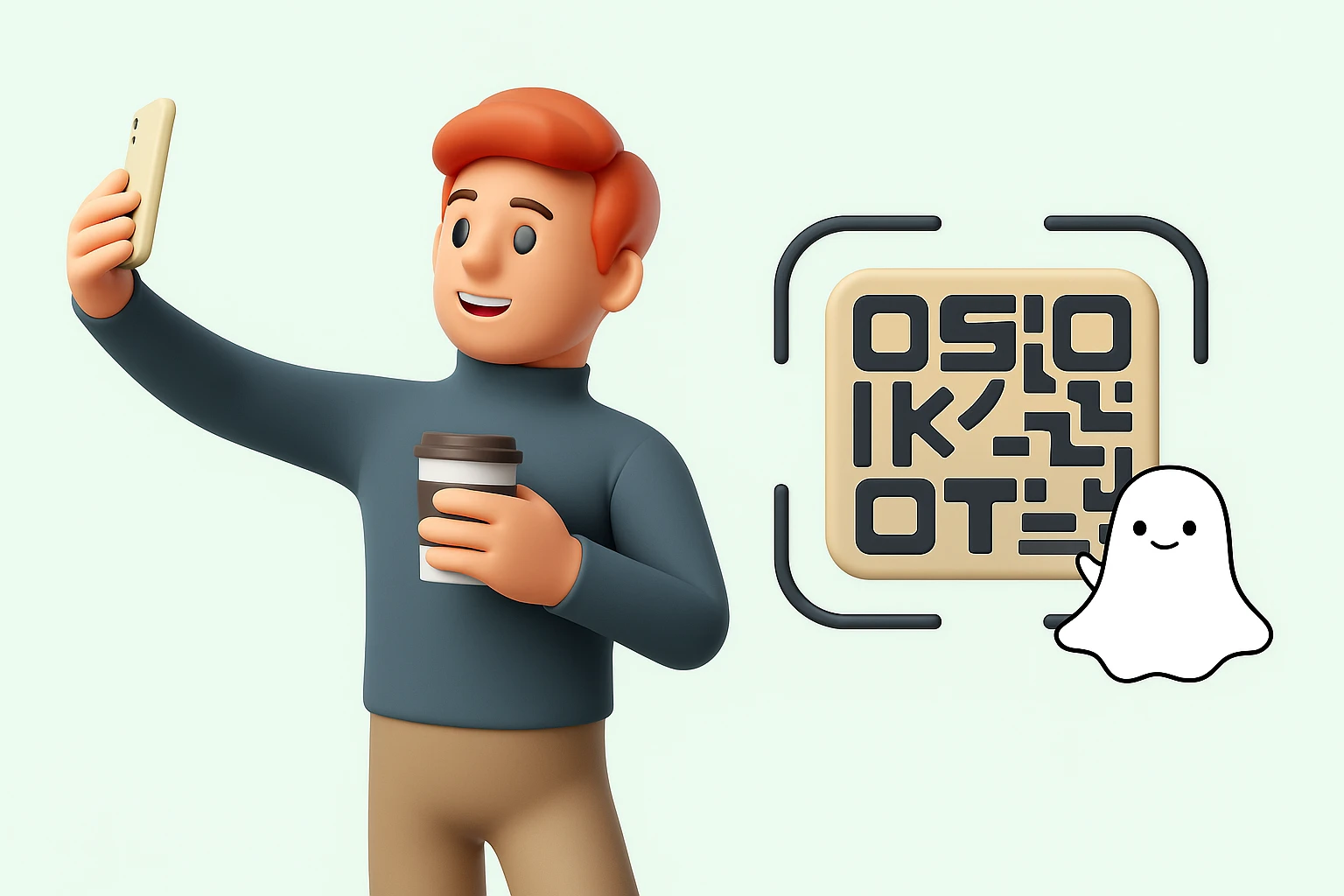
Snapchat has become one of the most interactive social media platforms, thanks to its unique features like filters, lenses, and Snapcodes. If you’ve ever received a Snapcode from a friend or saved one from a brand’s promotion, you might wonder whether it can be scanned directly from your phone’s gallery instead of pointing your camera at another screen. The good news is yes, you can easily scan Snapcodes saved to your camera roll on both Android and iPhone.
This detailed guide will walk you through what Snapcodes are, why they matter, how to scan them from your gallery, and how businesses can maximize their impact through marketing strategies.
What is a Snapcode?
A Snapcode is Snapchat’s version of a QR code, designed specifically to make connecting on the platform seamless. Instead of manually typing a username or searching for someone, you can simply scan a Snapcode, and Snapchat will immediately direct you to that account, filter, lens, or website.
Some of the main uses of Snapcodes include:
- Adding Friends Instantly: No need to type usernames , scanning a Snapcode links you directly.
- Unlocking Filters and Lenses: Brands and creators often release exclusive filters or AR experiences through Snapcodes.
- Accessing Websites or Promotions: Businesses use Snapcodes to direct users to campaigns, discount codes, or limited-time events.
- Special Content: Snapcodes can unlock hidden features, behind-the-scenes media, or interactive content.
Think of it as Snapchat’s built-in shortcut for quicker, more engaging interaction. Since Snapcodes are unique to the platform, they give Snapchat users a distinct way to connect and experience content.
How to Scan a Snapcode Saved on Android
If you’re using an Android device, follow these steps to scan a Snapcode directly from your gallery:
1. Open Snapchat
Launch the Snapchat app on your device and log in if you aren’t already.
2. Go to Your Profile
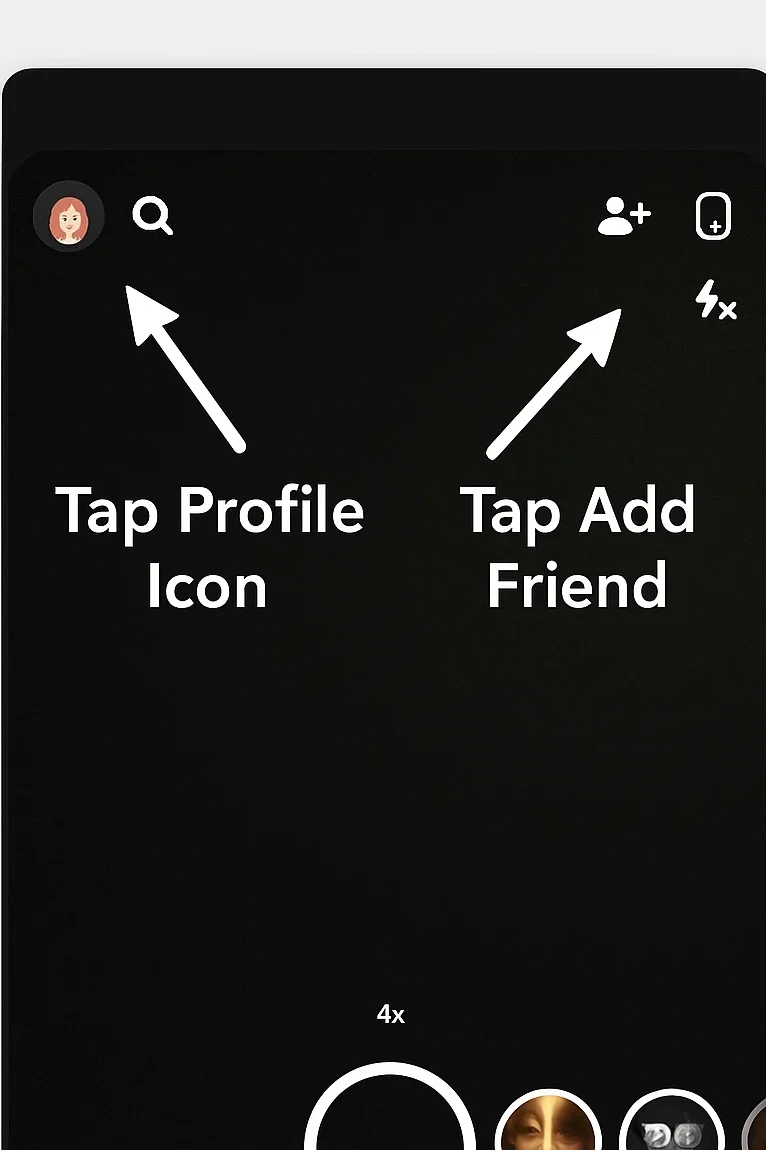
Tap on your Bitmoji or profile icon in the top-left corner of the home screen.
3. Select “Add Friends”
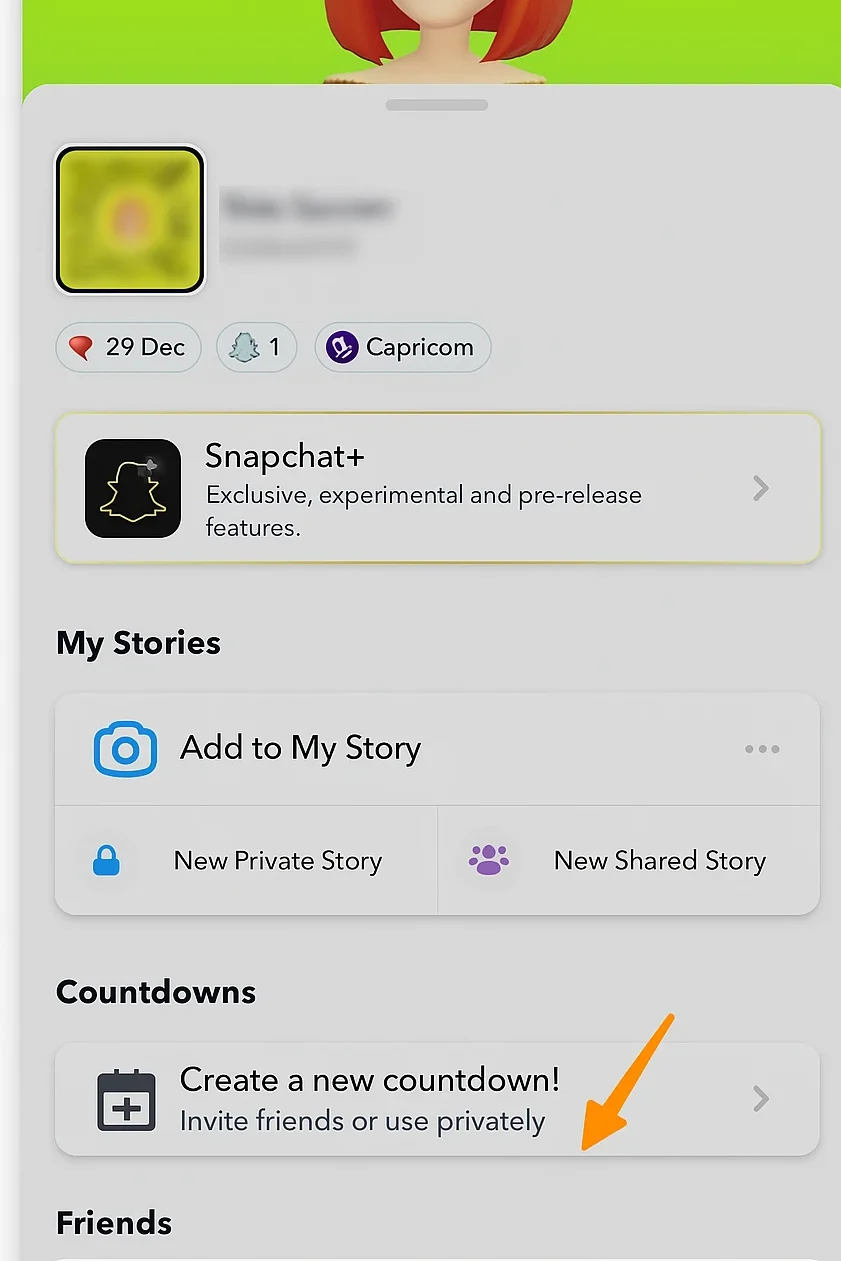
On your profile page, tap the “Add Friends” button. This is usually represented by a person icon with a plus sign in the corner.
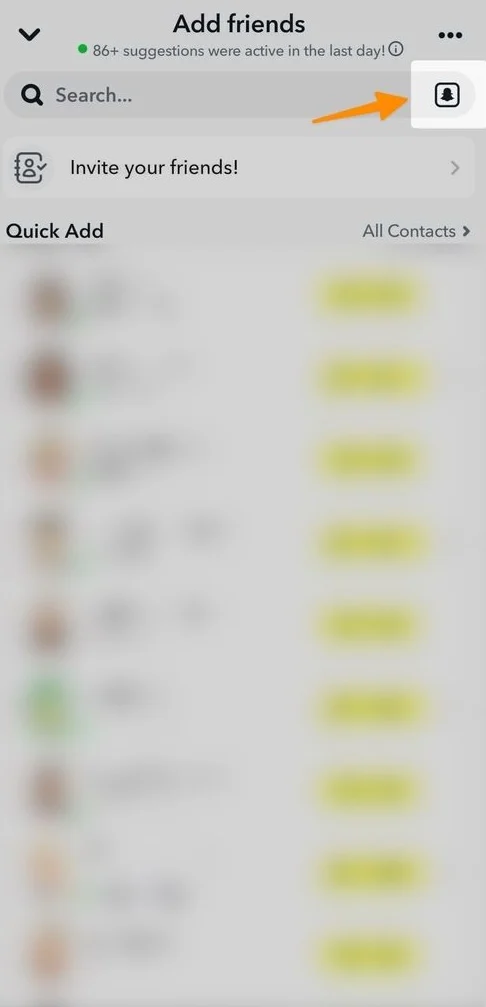
4. Tap the Snapcode Icon
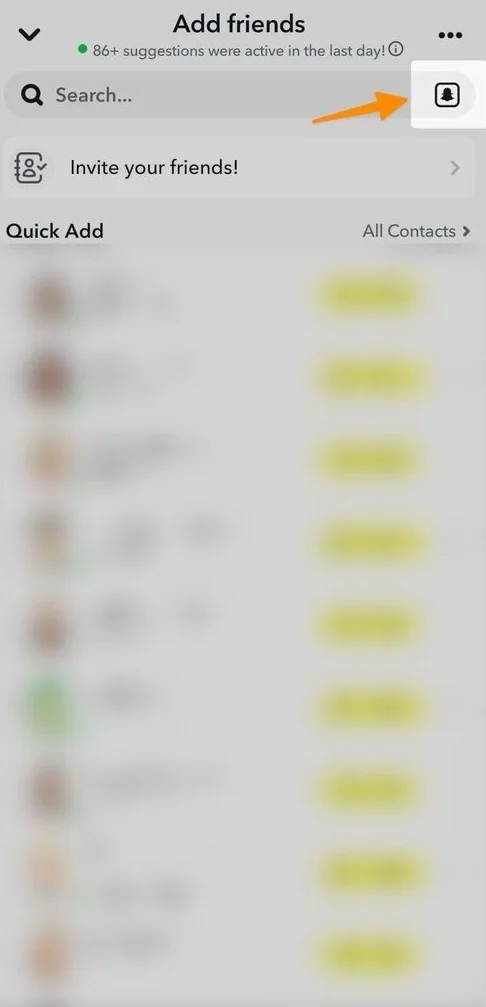
You’ll notice a small Snapcode icon next to the search bar. Tap it to open your gallery.
5. Choose the Snapcode from Your Gallery
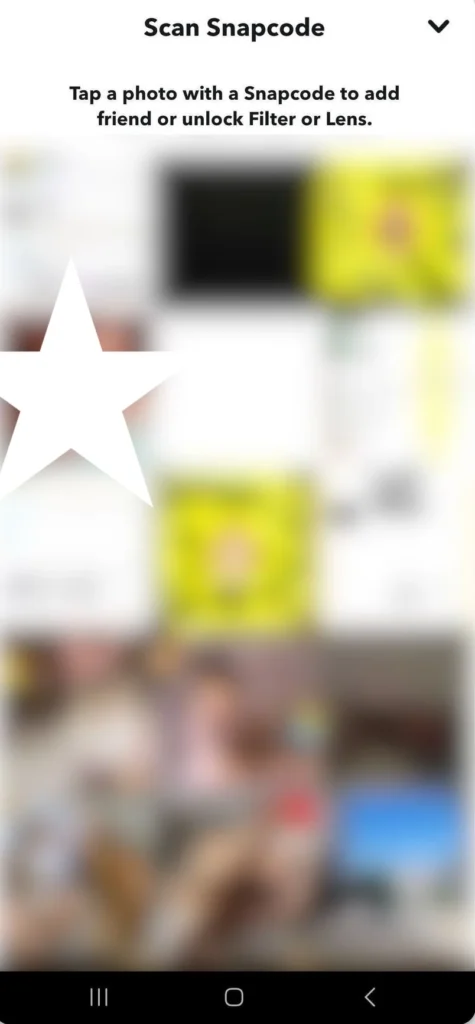
Browse your saved images and select the Snapcode you want to scan.
6. Let Snapchat Do the Rest
Once selected, Snapchat will automatically read the code and direct you to the corresponding action whether it’s adding a new friend, unlocking a filter, or accessing a website.
How to Scan a Snapcode Saved on iPhone
The process on iPhone is very similar, with only slight differences in navigation.
1. Open Snapchat
Launch the app on your iPhone and make sure you’re logged in.
2. Access Your Profile
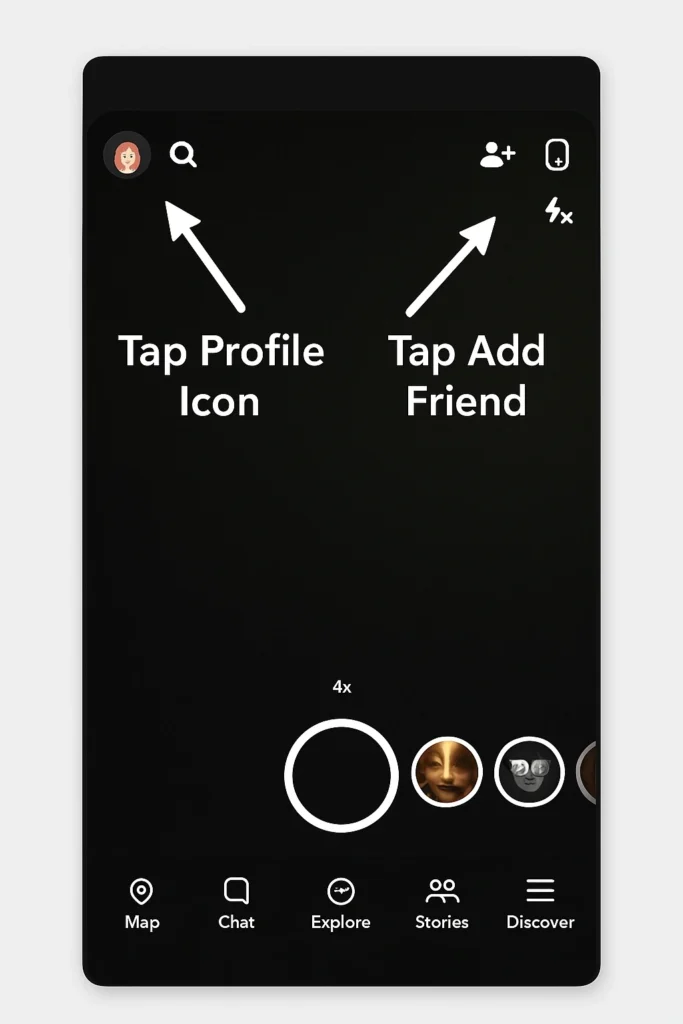
Tap your Bitmoji or profile icon in the top-left corner.
3. Go to “Add Friends”
On your profile page, select “Add Friends.”
4. Tap the Snapcode Option
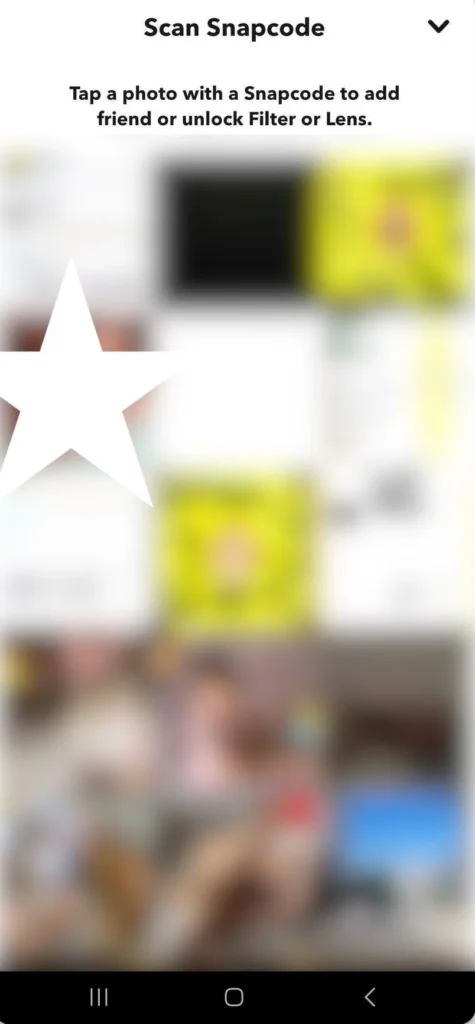
A small Snapcode icon will appear next to the search bar. Tap it to open your camera roll.
5. Select the Snapcode Image
Browse through your photos and choose the saved Snapcode.
6. Scan and Connect
Snapchat will immediately process the image and redirect you to the linked action.
Best Practices for Using Snapcodes in Marketing
Beyond personal use, Snapcodes are a powerful marketing tool. Businesses and influencers often integrate Snapcodes into campaigns to drive engagement. Here’s how to use them effectively:
1. Display Snapcodes Prominently
- Place them on both digital media (websites, social profiles, email signatures) and print media (flyers, posters, packaging).
- Ensure the image is high quality so users can scan easily.
2. Offer Exclusive Content
- Incentivize users to scan by providing discounts, hidden filters, or behind-the-scenes content.
- During events, release custom Snapcodes that unlock special filters to increase brand visibility.
3. Cross-Promote on Other Platforms
- Share your Snapcode across Facebook, Instagram, Twitter, LinkedIn, and even YouTube to funnel users into Snapchat.
- Encourage user-generated content (UGC) where followers post with your branded filter or lens.
4. Track and Optimize Performance
- Snapchat provides insights into engagement. Monitor how many users scanned and interacted.
- Test different Snapcode placements (product packaging vs. website) to identify what brings better results.
5. Simplify the Experience
- Provide clear instructions with your Snapcodes, especially if your target audience is new to Snapchat.
- Direct Snapcodes to specific actions—like unlocking a lens—rather than vague landing pages.
6. Keep Campaigns Fresh
- Regularly update Snapcodes for new promotions to maintain engagement.
- Retire outdated codes to avoid frustrating users.