

Knowing how to make a Venmo QR code can significantly simplify your personal and business transactions. Whether you’re a freelancer, small business owner, or just someone splitting dinner with friends, Venmo QR codes provide a convenient, secure, and efficient way to send or receive money.
What’s a Venmo QR Code, Really?
Put simply, a Venmo QR code is a scannable code that links directly to your Venmo profile. When someone scans it using their phone’s camera (or the Venmo app), they’re taken directly to your profile—ready to send or request money.
This means no typing usernames, no sending links, no worrying about someone sending money to the wrong account. It’s a seamless, user-friendly way to handle payments in seconds.
Why You Should Use a Venmo QR Code
Using a Venmo QR code isn’t just trendy—it’s practical:
- Faster Transactions – No need to enter details manually.
- Improved Accuracy – Eliminates the risk of sending money to the wrong person.
- Contactless Payments – Ideal for hygiene-conscious environments.
- Business-Friendly – Perfect for freelancers, vendors, and small business owners.
- Brandable and Shareable – Customizable and easy to display on printed materials or digital platforms.
How Does a Venmo QR Code Work?
Here’s how Venmo QR codes function:
- Generation: The QR code encodes either your Venmo user ID or a pre-filled payment request.
- Scanning: The sender scans the QR code using the Venmo app’s built-in scanner.
- Transaction: The app redirects to your profile or auto-fills payment details.
This eliminates the margin for error and makes payments quick and secure.
How to Make a Venmo QR Code Using the Venmo App
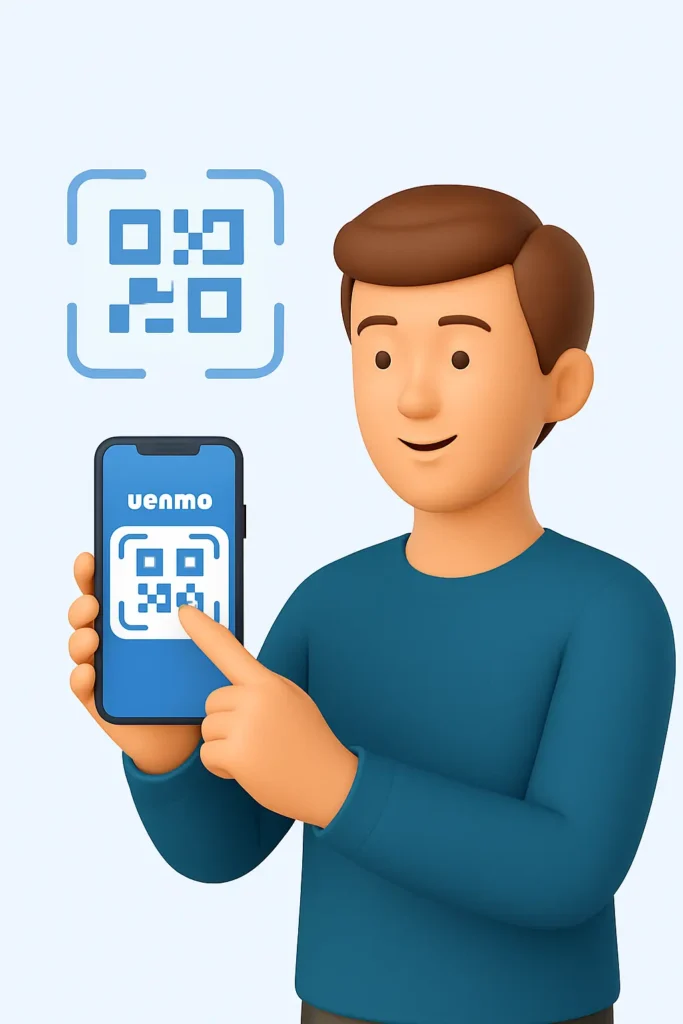
If you’ve already got the app installed, here’s how to get your personal or business QR code in a few taps:
For Personal Use:
- Open the Venmo app.
- Tap the “Me” tab (usually your profile icon).
- Tap the QR code icon next to your profile picture.
- Select “Venmo Me.”
- Your unique QR code will appear, ready to be shared or saved.
For Business Profiles:
- Go to your business profile.
- Tap “Charge”, then “QR Code.”
- Tap “Venmo Me.”
- To add a fixed amount, tap the $ icon, set the price, and save.
Once done, you can either show the QR code directly from your phone or save it for later.
Saving, Printing, and Sharing Your Code
After displaying your QR code in the app, you can:
- Tap the Share button to send it via email, text, or social apps.
- Take a screenshot to print and post at your workspace or checkout counter.
- Add it to invoices, business cards, or posters.
A clear, high-resolution version ensures it remains easily scannable.
Want More Customization? Use an Online QR Generator
While Venmo gives you a quick and functional code, sometimes you want a little flair—like brand colors, a logo, or custom design. That’s where tools like QR Code Monkey
Here’s how to do it:
Step1: Visit a QR code website like qrcodemonkey.net
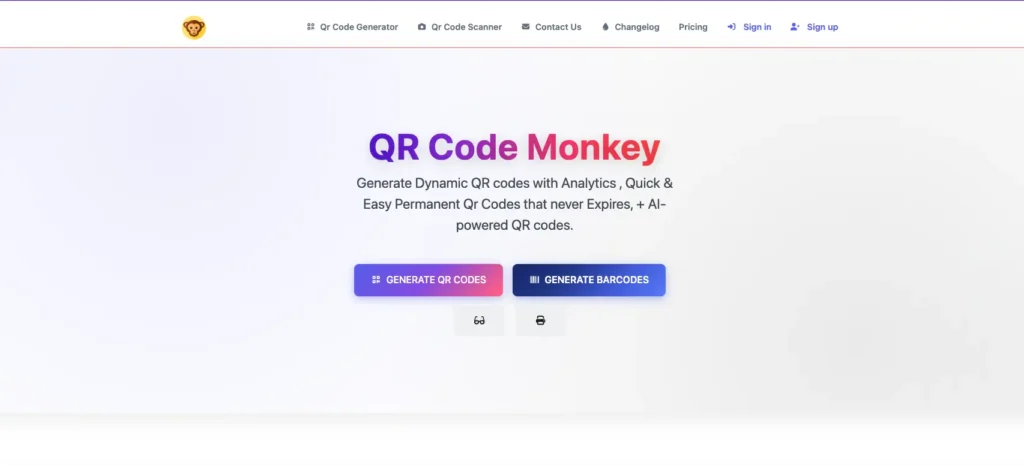
Step2: Go to Qr Code genereator tab and Choose the URL QR Code option.
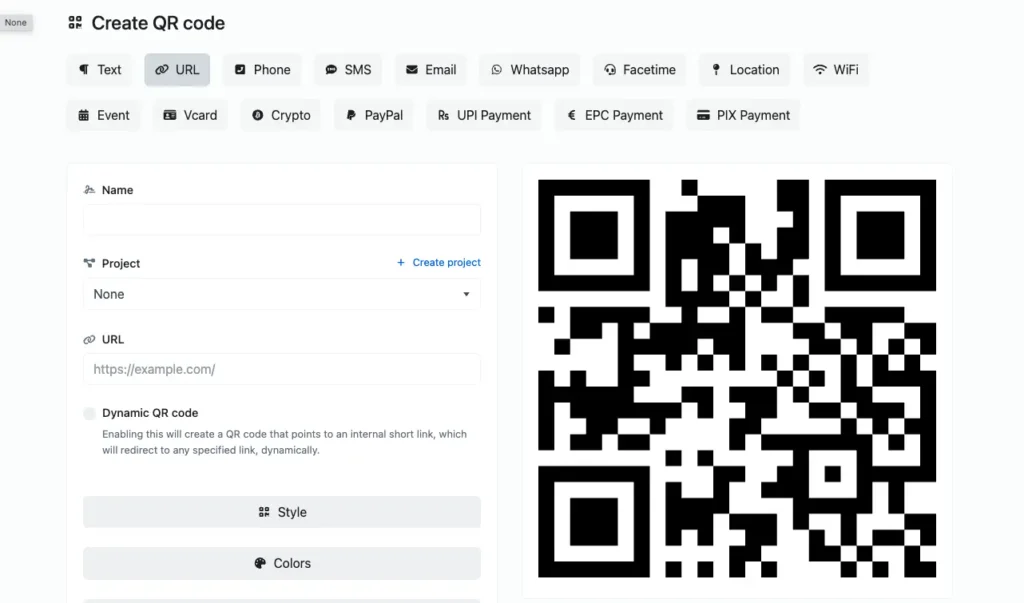
Step3: Enter your Venmo profile link (e.g., https://venmo.com/yourusername).
Step 4: Add colors, logos, or frames to personalize.
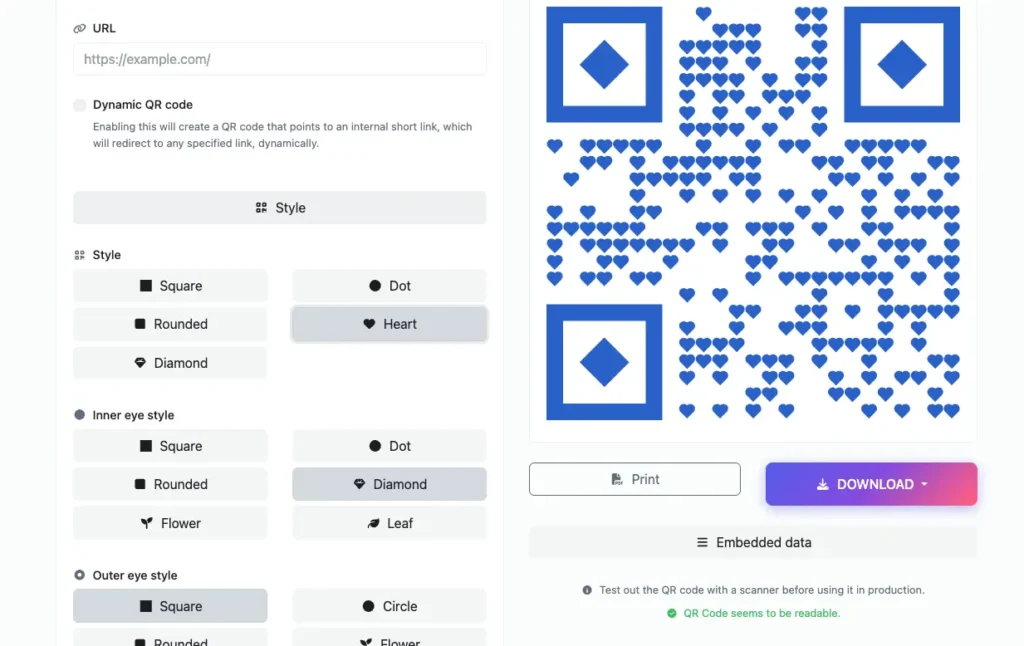
Step4: Click Create QR Code, then download as JPG, PNG, or SVG.
You can then embed your new design in social media graphics, marketing flyers, or digital invoices.
📌 Pro Tip: Always scan the generated code with your Venmo app to confirm it works before using it publicly.
Creative Ways to Use Your Venmo QR Code
There’s no single way to use your code—and that’s what makes it so versatile:
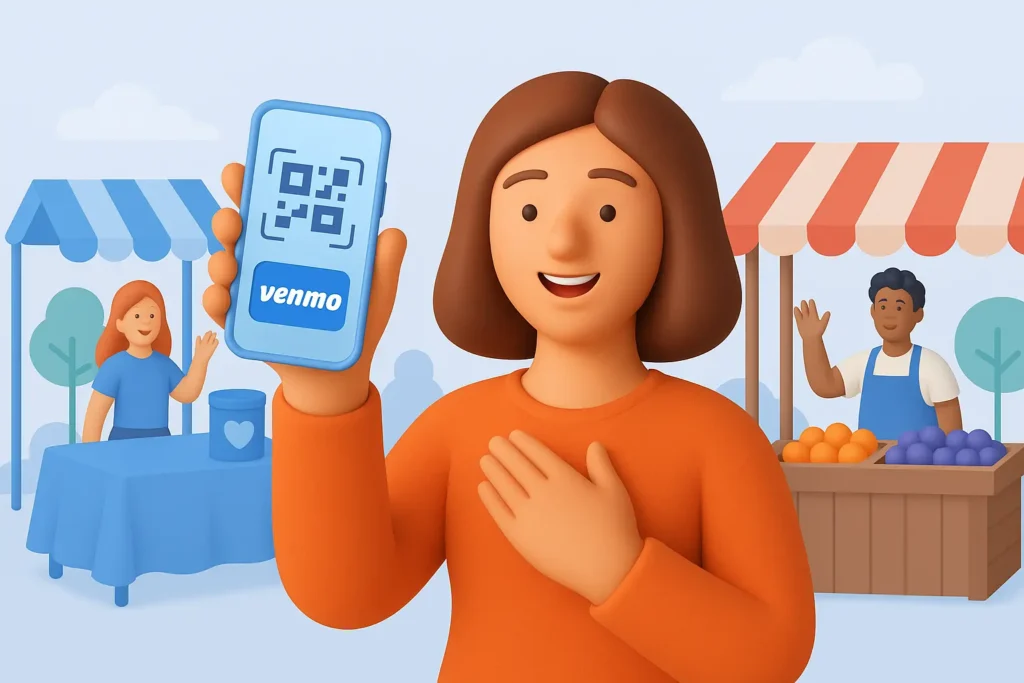
- Freelancers: Add it to your email signature or invoice.
- Musicians/Performers: Display it during live shows or live streams for tips.
- Retail Owners: Place one at the checkout counter.
- Events & Fundraisers: Collect donations with one quick scan.
- Market Vendors: Stick it on your booth or cash box.
- Hairdressers/Barbers: Add a QR code sticker to your mirror.
And of course, you can always use it for splitting restaurant bills, group gifts, or weekend plans.
Common Issues and Quick Fixes
Sometimes things don’t go as planned. Here’s how to fix common problems:
❌ QR Code Not Scanning?
- Make sure it’s not blurry or distorted.
- Try adjusting the distance and angle.
- Ensure good lighting.
- Clean your phone camera lens.
❌ Payment Not Going Through?
- Confirm the payer has a valid linked card or bank.
- Check if their Venmo balance is sufficient.
- Look for any transaction restrictions or security flags.
❌ Wrong Profile Appears?
- Verify the link in the QR code.
- Always preview your QR code before publishing.
Best Practices for Safe and Effective Use
Want to get the most out of your Venmo QR code? Keep these tips in mind:
- Use High-Quality Files: Especially for print materials.
- Test It First: Try it with a friend or second device.
- Update Your Profile: Make sure your profile name or photo is current.
- Use Secure Links: Don’t use shortened or masked URLs.
- Avoid Oversharing: Don’t post your code where scammers may grab it.
- Enable Privacy Settings: Set transactions to private if needed.
Business owners: preset your payment amount and label for smoother checkout.
Learning how to create a Venmo QR code is a simple yet powerful step toward streamlining your financial interactions. Whether it’s for casual use or integrated into your business workflow, Venmo QR codes enhance speed, security, and professionalism in every transaction.
Start using your Venmo QR code today and offer your friends, clients, or customers a frictionless way to pay or get paid.